Competitive
FACEIT-Lobby-Vorbereitung + CS2-Cheats-Pläne
Schlechte Lobbys starten meist mit Konflikten, nicht mit Skill. Diese Checkliste hilft vor dem Queue — und das Cheats-CS2-Produkt bündelt ESP, Aim-Tab und Status nach Patches für FACEIT-Lobbys auf Windows 10 und 11.
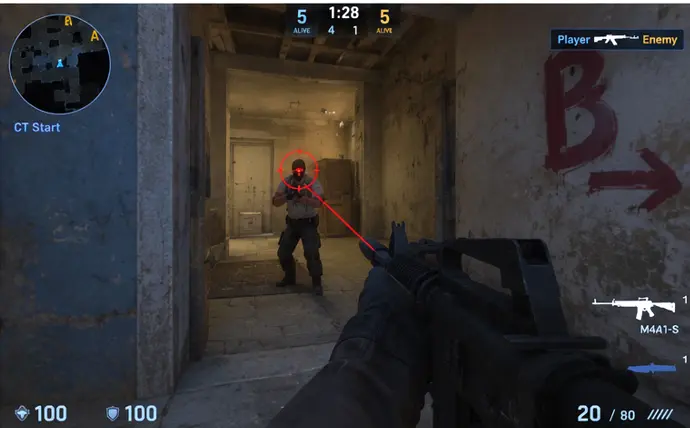
Check Your Game and Client Status
Start with the boring basics: Steam is updated, CS2 is fully patched, and the FACEIT client shows no pending update. A version mismatch between the game and any third-party software is the number one reason a session falls apart five minutes after the match starts, so confirm the status label on the product page before you queue rather than after.
If a game update landed in the last few hours, treat it as a signal to slow down. Our Patch Day Status article explains how to read the status label and why waiting is almost always the better call than launching into an unknown state in a ranked lobby.
Review Your Current Configuration
Open the profile you intend to use and read it top to bottom once. It is easy to leave a test profile loaded from a late-night experiment, and surprises in the middle of a map are exactly what you want to avoid when teammates are counting on you.
Be realistic about what that profile means in this environment. FACEIT and most tournament organizers prohibit third-party software that gives an advantage, and enforcement can mean permanent account bans, forfeited rewards, and sometimes hardware or identity-linked restrictions. We do not offer advice on getting around those systems, and nothing here should be read as a promise of safety. If account risk is not something you are willing to accept, do not run it in competitive lobbies at all.
Check Keybinds and Input Conflicts
Hotkeys collide more often than people expect. A menu toggle that shares a key with a voice bind, a scoreboard key, or a mouse-software macro can open panels at the wrong moment or swallow an input during a duel. Write your binds down once and compare them against your in-game settings.
If a menu key stops responding entirely, do not start rebinding everything in a panic. Work through the order in Insert Key Not Working? first, because most cases come down to Fn lock, window focus, or a stale process rather than a real configuration problem.
Review Overlays and Background Applications
Overlays are the most common source of frame-time spikes. Chat overlays, GPU monitoring tools, recording software, RGB controllers, and browser tabs with video can all compete for the same resources. Close what you do not need and keep a short list of apps you allow while queuing.
Also check what is hooking into the game. Several overlays inject into the render pipeline and can conflict with each other. The Windows Pre-Launch Checklist covers startup items, driver state, and background processes in more detail, and it is worth running through once before a long session.
Confirm Voice Chat and Communication Settings
Test your microphone before the lobby fills. Check the input device, the push-to-talk key, output volume, and whether the game or FACEIT client is routed to the headset you are actually wearing. Nothing derails a first round like discovering your team cannot hear you.
Agree on how you will communicate, too. Short, calm callouts beat long explanations in a ranked match. If you stream or record, decide in advance what teammates are comfortable with and respect any event rules about recording or sharing audio.
Warm Up Before Joining a Match
A ten-minute warm-up in a practice map or deathmatch server is worth more than any setting change. Move your mouse, check your sensitivity feels right, and get your eyes used to the contrast of the maps you expect to play. Keep the warm-up on legitimate practice servers.
Use the same time to confirm frame rate and latency are stable. If you see stutter, close apps one at a time instead of changing many things at once, so you can tell what actually fixed it.
Final Pre-Queue Checklist
Run through this list once before you press Find Match. It takes about two minutes and removes most avoidable problems.
- Steam, CS2, and the FACEIT client are all fully updated.
- The status label shows the software is current for today's game build.
- The profile you loaded is the one you intended to use.
- Keybinds do not clash with voice, scoreboard, or mouse software.
- Overlays and unneeded background apps are closed.
- Microphone, headset, and push-to-talk are tested.
- You have warmed up on a practice server.
- You understand the competitive rules and accept the account risk.
If any line fails, fix it before queuing. A delayed match is cheaper than a ruined one.
Warum Käufer das Cheats-CS2-Produkt nutzen
Im Produkt-Hub findest du ESP, Aim-Regler, Radar-Overlay und gespeicherte Configs für Windows 10 und 11 in FACEIT-Lobbys. Der Status wird nach CS2-Patches aktualisiert, die Lieferung ist digital, Support ist 24/7 erreichbar.
Welcher Plan passt
Monatlich kostet 35 $ für 31 Tage, Lifetime 150 $ ohne Tageszähler. Vergleiche beides unter Preise und Pläne.
Lieferung, Support und Richtlinien
Bestellungen kommen per E-Mail mit Download-Link und Loader-Hinweisen. Bei Ladefehlern: Support mit Bestell-ID. Rückerstattung steht in FAQ und AGB. Ersteinrichtung: Setup-Forum.
Kurze Antworten vor dem Kauf
Was kosten CS2 cheats?
Ab 35 $ monatlich oder 150 $ Lifetime — siehe Preise. Status vor dem Checkout prüfen.
Wie schnell ist die Lieferung?
Digital per E-Mail, meist innerhalb weniger Minuten nach Zahlung.
Läuft es auf meinem PC?
Für Windows 10 und 11. Anforderungen auf der Produktseite lesen.
Module und Pläne vergleichen?
Ab 35 $