System
Windows 10/11 pre-lancio cheat CS2
Windows instabile sembra un bug. Checklist Win 10/11 prima del prodotto Cheats CS2.
Install Pending Windows Updates
Open Windows Update and install everything outstanding, then restart. Pending updates can change system components in the background, and a launch that happens halfway through one can behave unpredictably.
If an update fails, resolve that first. Do not carry an unstable system into a new setup. The First Night Setup guide treats this as step one for the same reason.
Update Graphics and Chipset Drivers
Download drivers directly from your hardware manufacturer. Outdated graphics drivers are a common cause of overlay glitches, stutter, and crashes. A clean update is usually better than an in-place patch when you are several versions behind.
Restart after installing. Many driver changes do not fully apply until you do, and testing before a restart can make results confusing.
Keep Security Software Enabled
Leave your normal antivirus and Windows Security running. Turning protection off is not a troubleshooting step we recommend, because it leaves your computer open to everything else that arrives while it is off.
If your security software flags a file, stop and do not override it. Note the file name and exact message, then contact support so it can be reviewed with you. If you cannot confirm a file came from your delivery message or account page, do not run it.
Trim Startup Items and Background Apps
Open the task manager and review the startup list. Disable things you do not need at boot, such as launchers, updaters, and utilities that run all day. A leaner startup means fewer surprises during a game session.
Be careful not to disable anything you do not recognize without checking what it is. When in doubt, leave it alone and search for the name first.
Review Overlays and Capture Tools
Chat overlays, GPU monitors, recording tools, and RGB software can all hook into the game. Run only the ones you need, and close the rest before you start. Having several overlays active at once is a frequent source of conflicts.
If you record or stream, the Stream-Proof Clips article explains which capture method suits which situation so you can keep capture software tidy.
Check Display Mode and Permissions
Know how your game is displayed. Borderless and fullscreen modes interact differently with overlays and capture. Pick one, test it, and stay with it for the session.
Also check that programs you launch together use the same permission level. A mismatch between a normal and an elevated process is a classic source of missing menus, which Insert Key Not Working? covers in detail.
Pre-Launch Checklist
Tick off each item before moving on.
- Windows updated and restarted.
- Graphics and chipset drivers current.
- Security software enabled and untouched.
- Startup items reviewed and trimmed.
- Overlays and capture tools limited to what you need.
- Display mode chosen and tested.
- Files only taken from your delivery message or account page.
Perché i buyer usano Cheats CS2
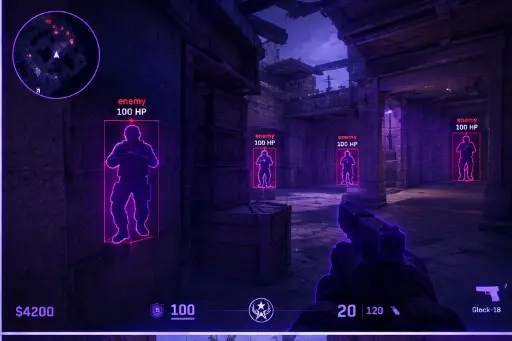
L'hub prodotto include ESP, controlli aim, overlay radar e profili per Windows 10 e 11 in lobby FACEIT. Stato aggiornato dopo le patch CS2, consegna digitale, supporto 24/7.
Quale piano conviene
Mensile 35 $ per 31 giorni; lifetime 150 $ senza contatore. Confronta su prezzi e piani.
Consegna, supporto e policy
Email con link di download dopo l'ordine. Problemi di load: supporto con ID ordine. Rimborsi in FAQ e termini. Setup: forum.
Risposte rapide prima dell'acquisto
Quanto costano i cheat CS2?
Da 35 $ al mese o 150 $ lifetime — prezzi prodotto. Controlla lo stato prima del checkout.
Quanto è veloce la consegna?
Consegna digitale via email, di solito in pochi minuti.
Funziona sul mio PC?
Per Windows 10 e 11. Requisiti sulla pagina prodotto.
Pronto a confrontare moduli e piani?
Da 35 $